Book scan: step by step
Scan a book's barcode to see the other sellers on bol.com and the most you can pay for it and still make your profit, then add it to Bol with one tap. Open Book scan from the menu.
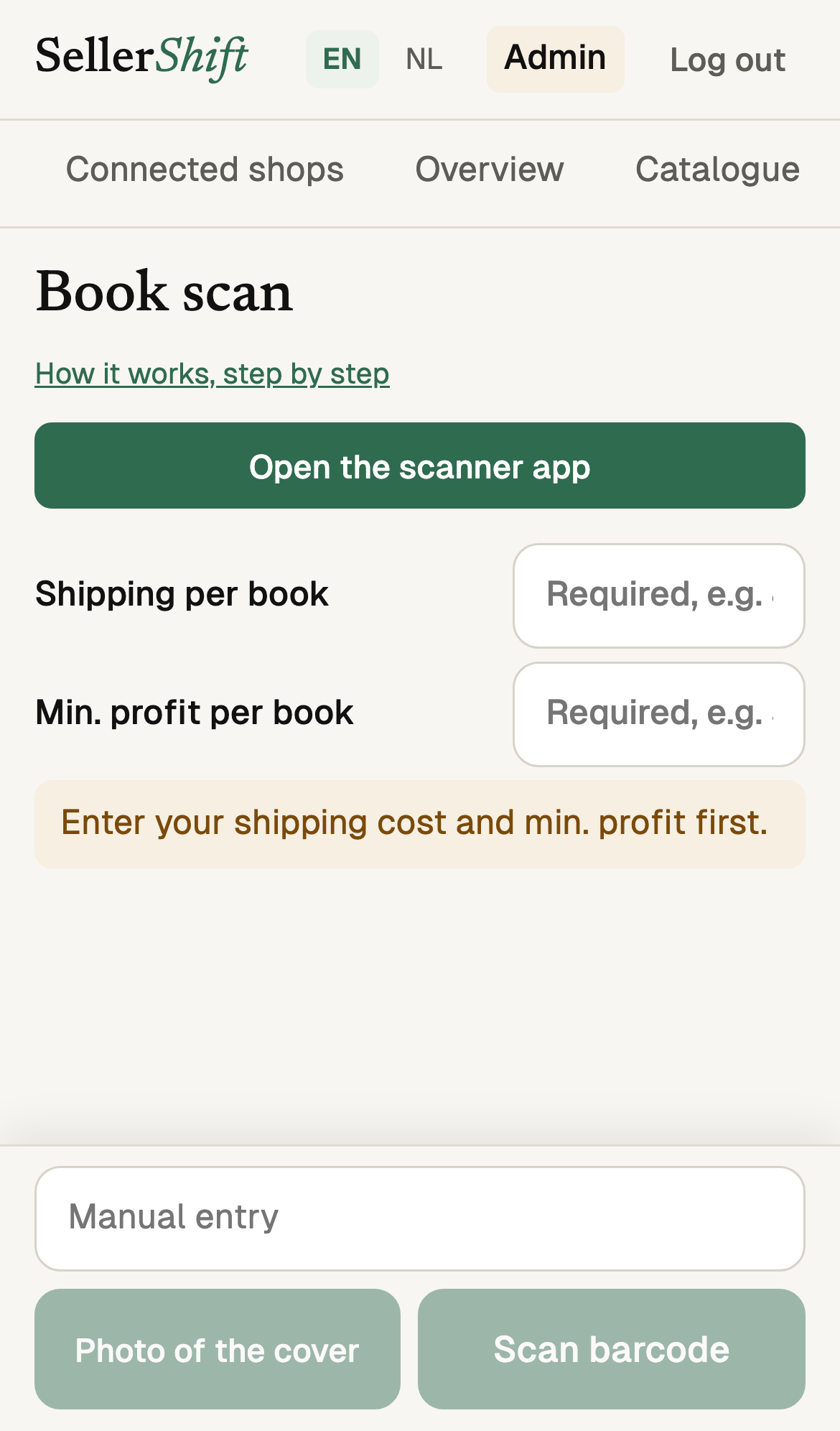
Enter shipping and your target profit
Shipping per book: what shipping one book costs you (e.g. 4,50).
Min. profit per book: the least you want to earn on each book (e.g. 3,00).
Both are required; the scan buttons stay off until you fill them in. Your phone remembers them, so you only enter them once.
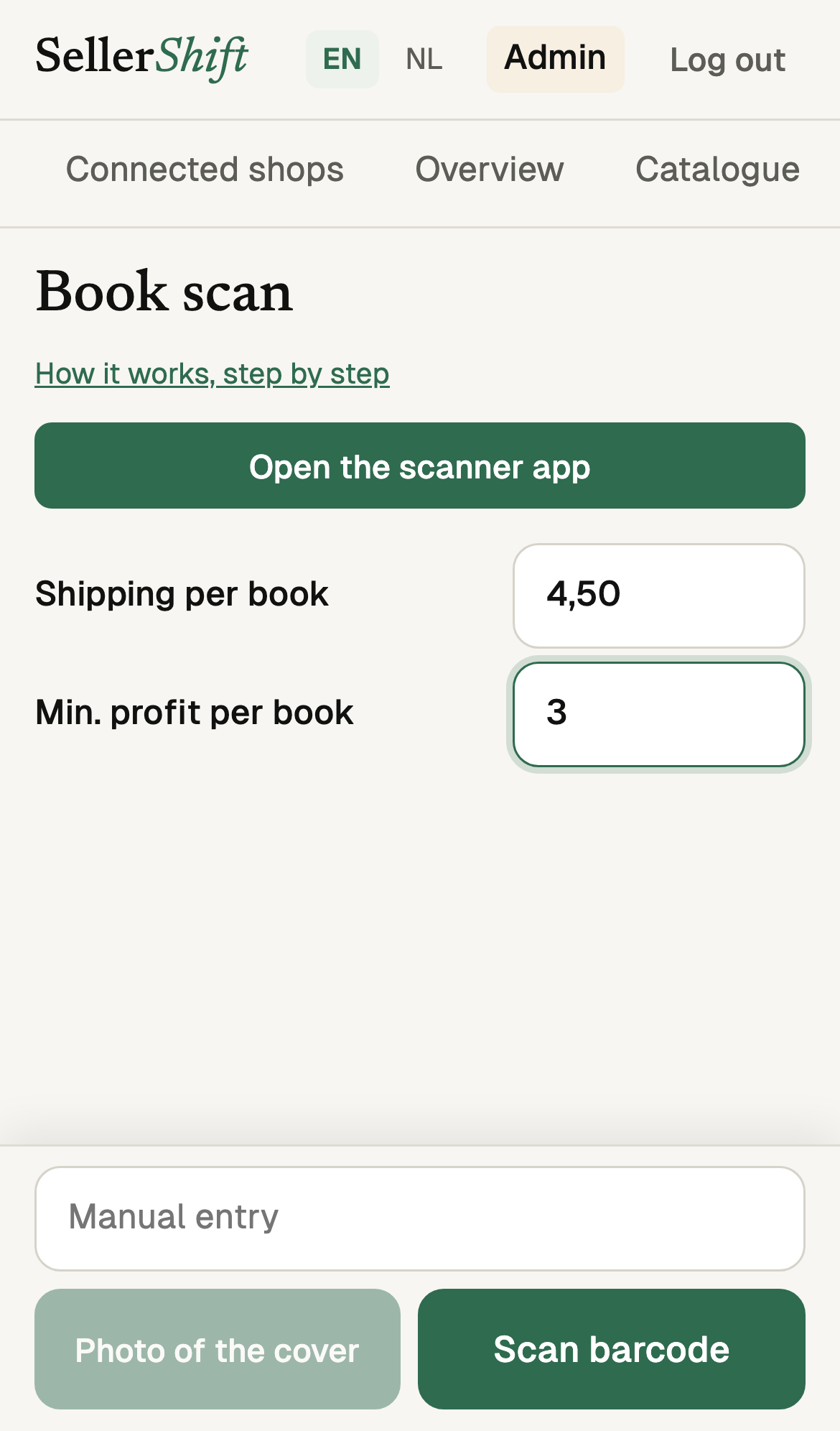
The buttons switch on
The warning goes away and Scan barcode and Look up can be used.
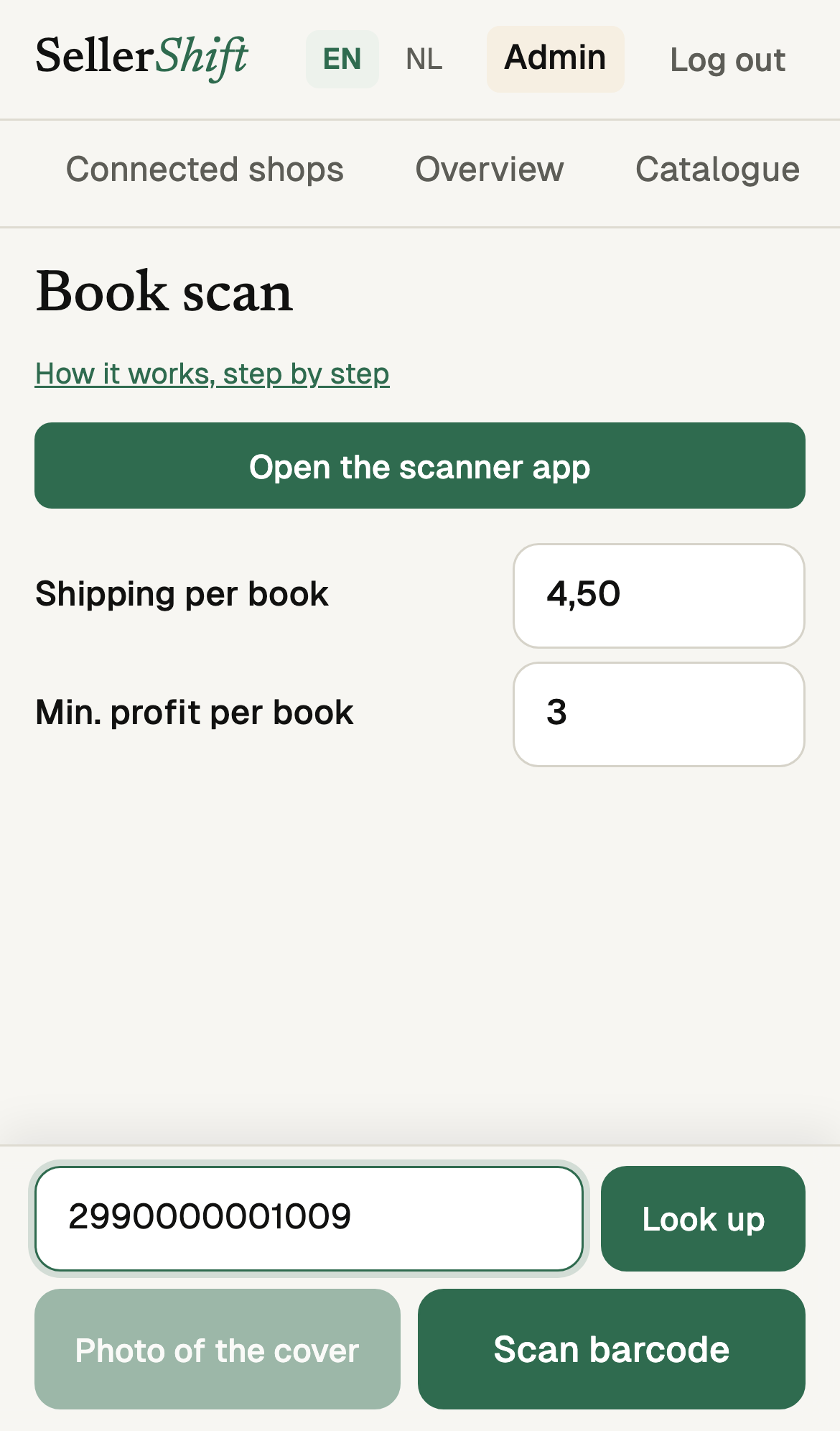
Find the book
Scan barcode: opens the camera; point it at the barcode on the back.
Or type the 13-digit ISBN and tap Look up.
Photo of the cover: no barcode? Take a photo of the cover and pick the right book from the matches.
Read the result
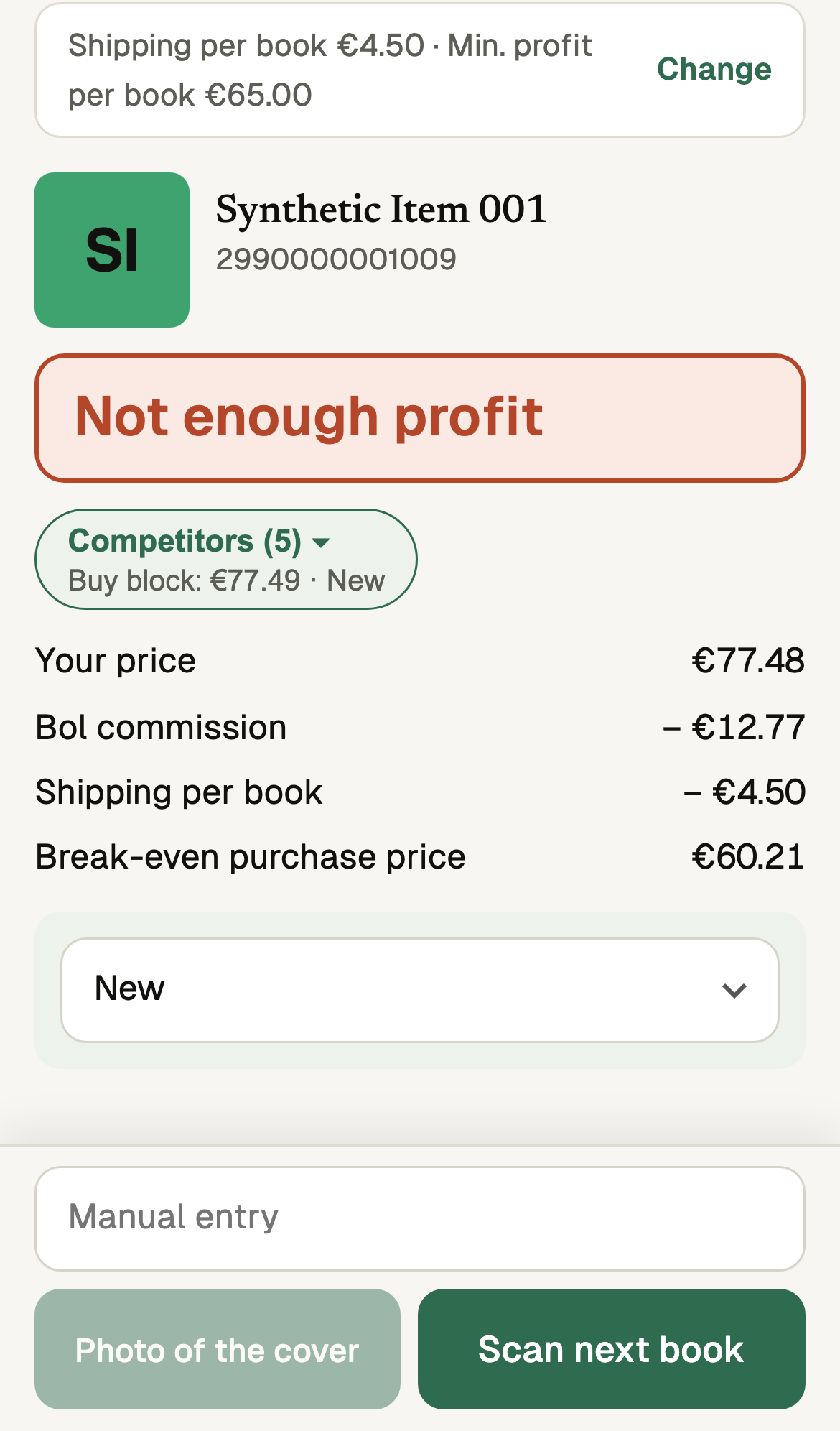
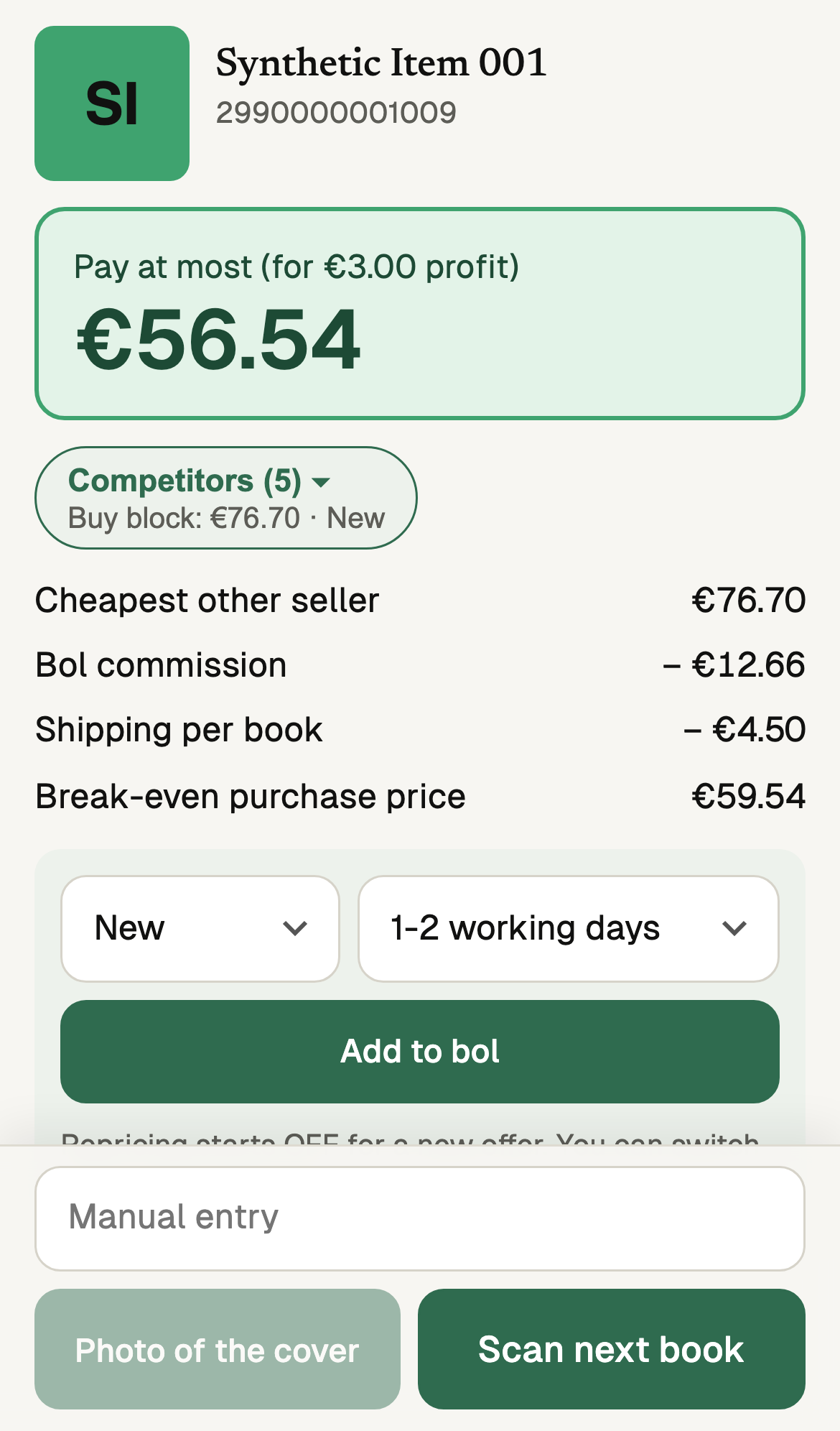
Competitors (5): how many other sellers offer this book. Below it is the Buy block price and condition: the offer that wins the “add to basket” button on bol.com.
The sum uses the cheapest competitor: selling price − Bol commission − shipping = Break-even purchase price (pay this and you make no profit and no loss).
Pay at most: the highest price you can pay for the book and still make your target profit. This is the number to look at.
Check the competitors, pick another price
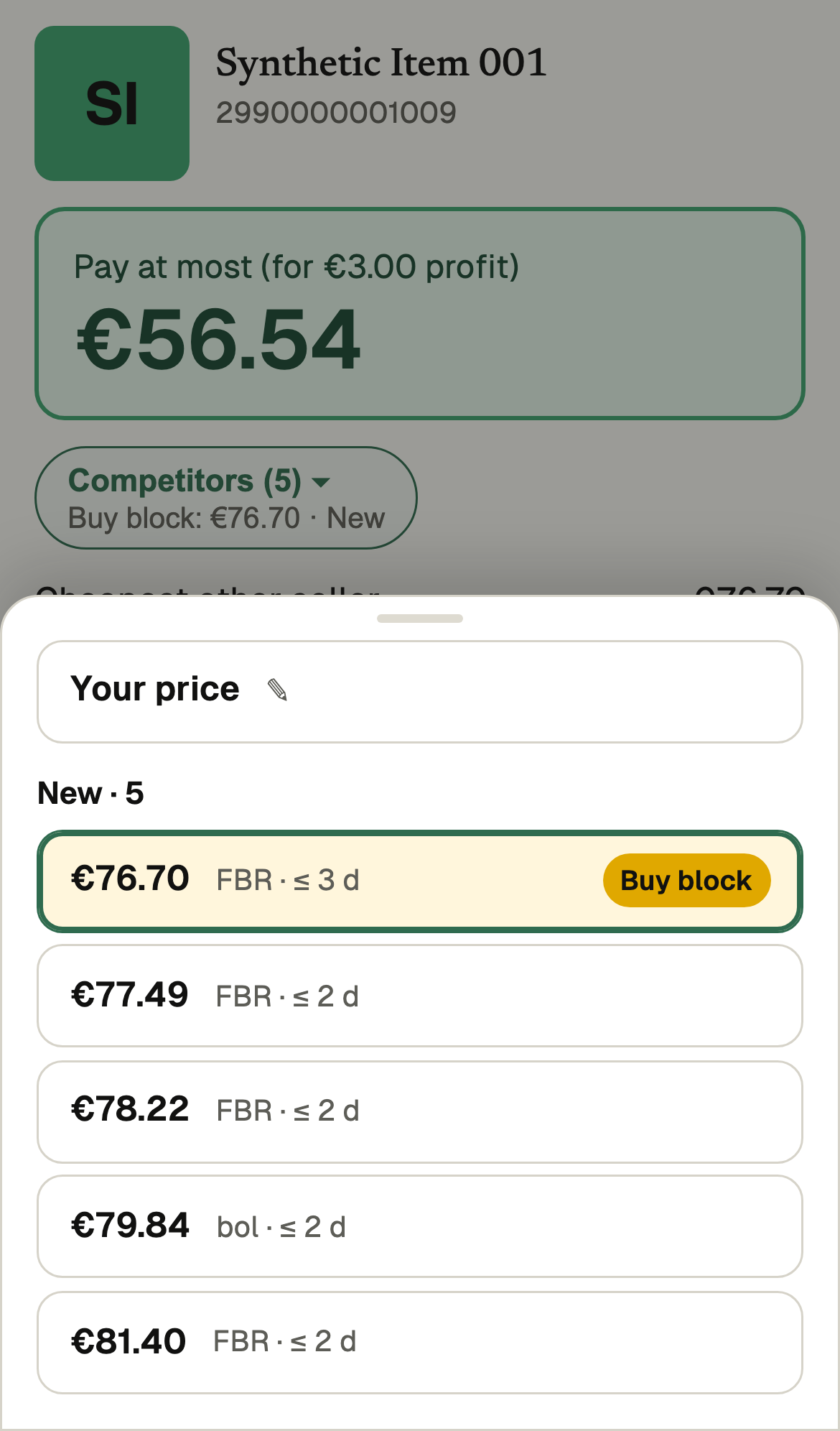
Tap Competitors ▾: every competing offer, grouped by condition (New, As new, Good…). Each row shows the price, who ships it (FBR: the seller, bol: bol.com's warehouse) and the latest delivery (≤ 2 d = at most 2 days). The yellow row with Buy block is the offer Bol shows first.
Tap a row and the sum is redone for that price. Use Your price at the top to type your own.
Add it to Bol
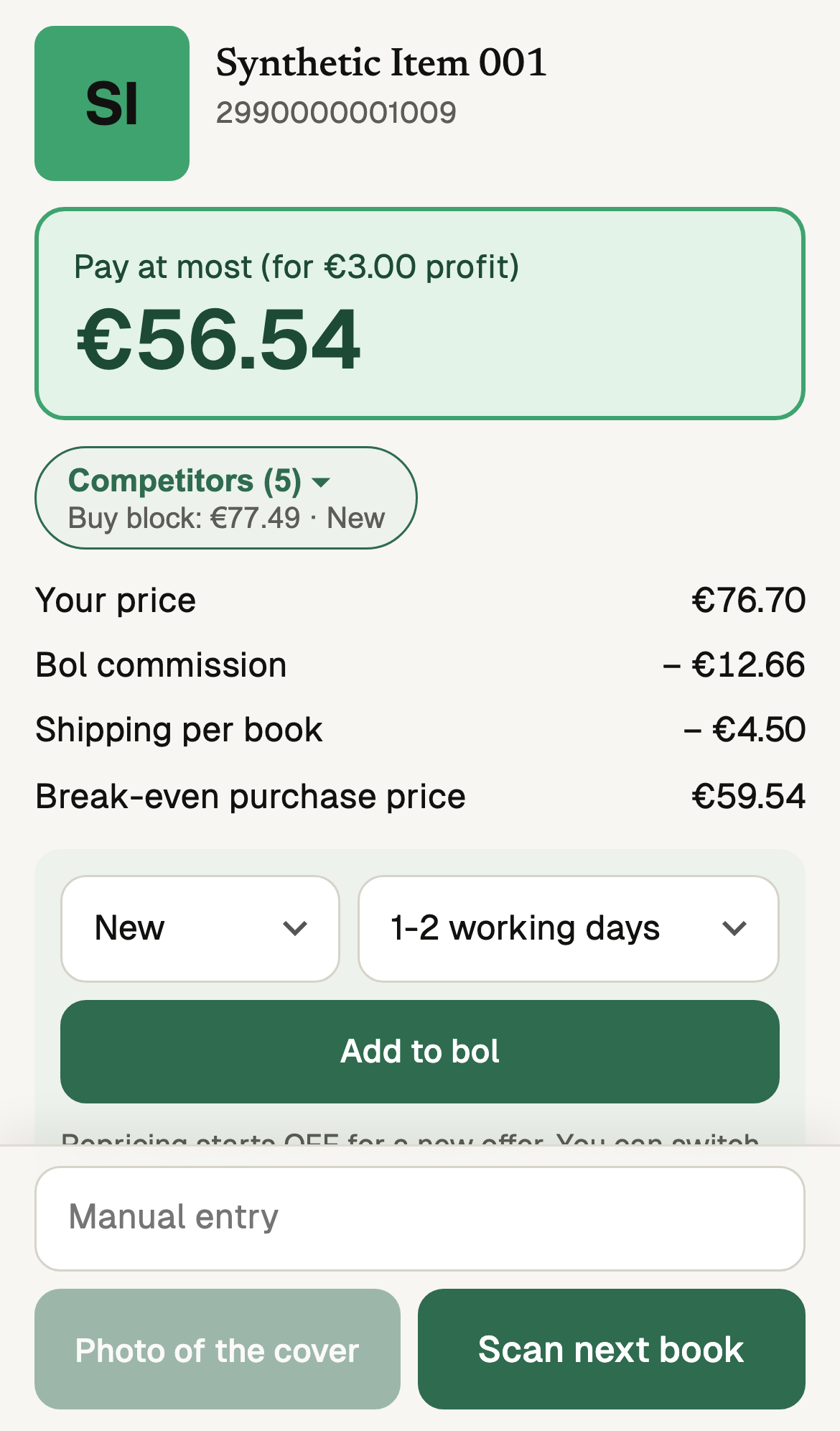
At the bottom, on one row: the book's condition (e.g. New, Good) and the delivery time (e.g. 1-2 working days). Choose both and tap Add to bol.
Repricing starts OFF for a new offer; you can switch it on in the Catalogue. If you already sell the book, you see +1 stock instead.
Confirm
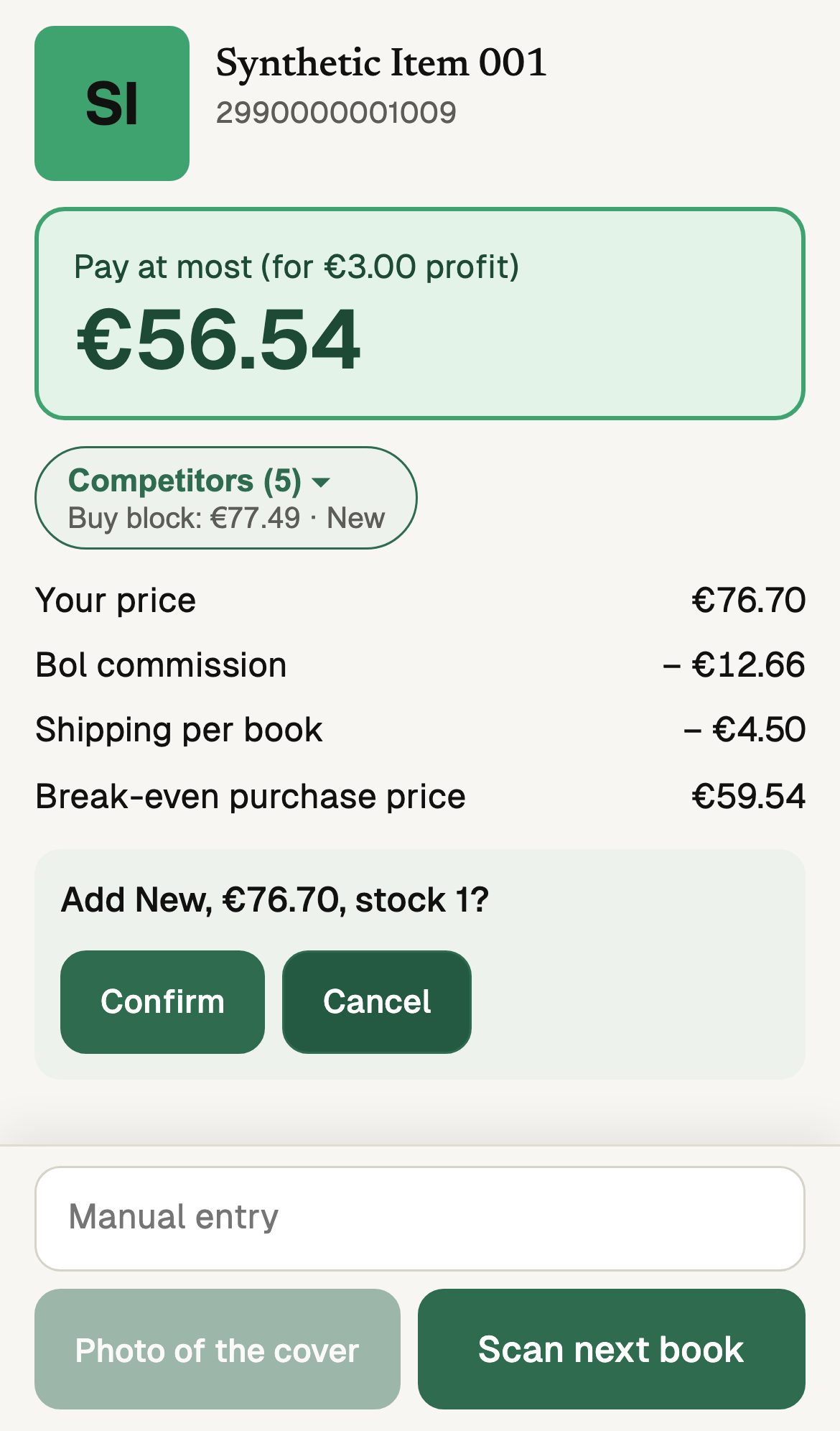
You are asked what will be added (condition, price, stock 1). Confirm sends it, Cancel stops. After a few seconds it says Added.
Not enough profit? Don't buy
Not enough profit: the book makes some profit, but less than your target.
No profit, don't buy: even for free there is no profit.
In both cases Add to bol and the delivery time are hidden. Tap Scan next book for the next one.